Releases

AI capabilities feel futuristic, but the interaction mode is oddly old-fashioned: type a command, press return, and wait for a response.
Over the decades, personal computing evolved beyond the command line. The Macintosh gave us point and click, the iPhone pinch to zoom. Siri let us speak to our devices, and Apple Pencil let us sketch on them.
It isn’t that one interaction mode replaced all the others. It’s that what’s most natural depends on the device you have at hand and what you’re trying to express.
We think AI will follow a similar path.
Today, we’re taking an important step in that direction:
Bitrig now lets you select elements in the App Preview as context for your prompt.
You can:
Hover to find elements. Move your pointer over the simulator to see text, buttons, images, and other selectable parts of your interface.
Select to edit. Click an element to add it to your prompt as context, then tell Bitrig what you want to change.
Compose richer prompts. Select multiple elements and interleave them with text to make your prompts more precise and expressive.
With this release, we’re also adding support for marking up simulator screenshots. Circle elements, draw arrows, and sketch freeform with Apple Pencil to add context to your prompt.
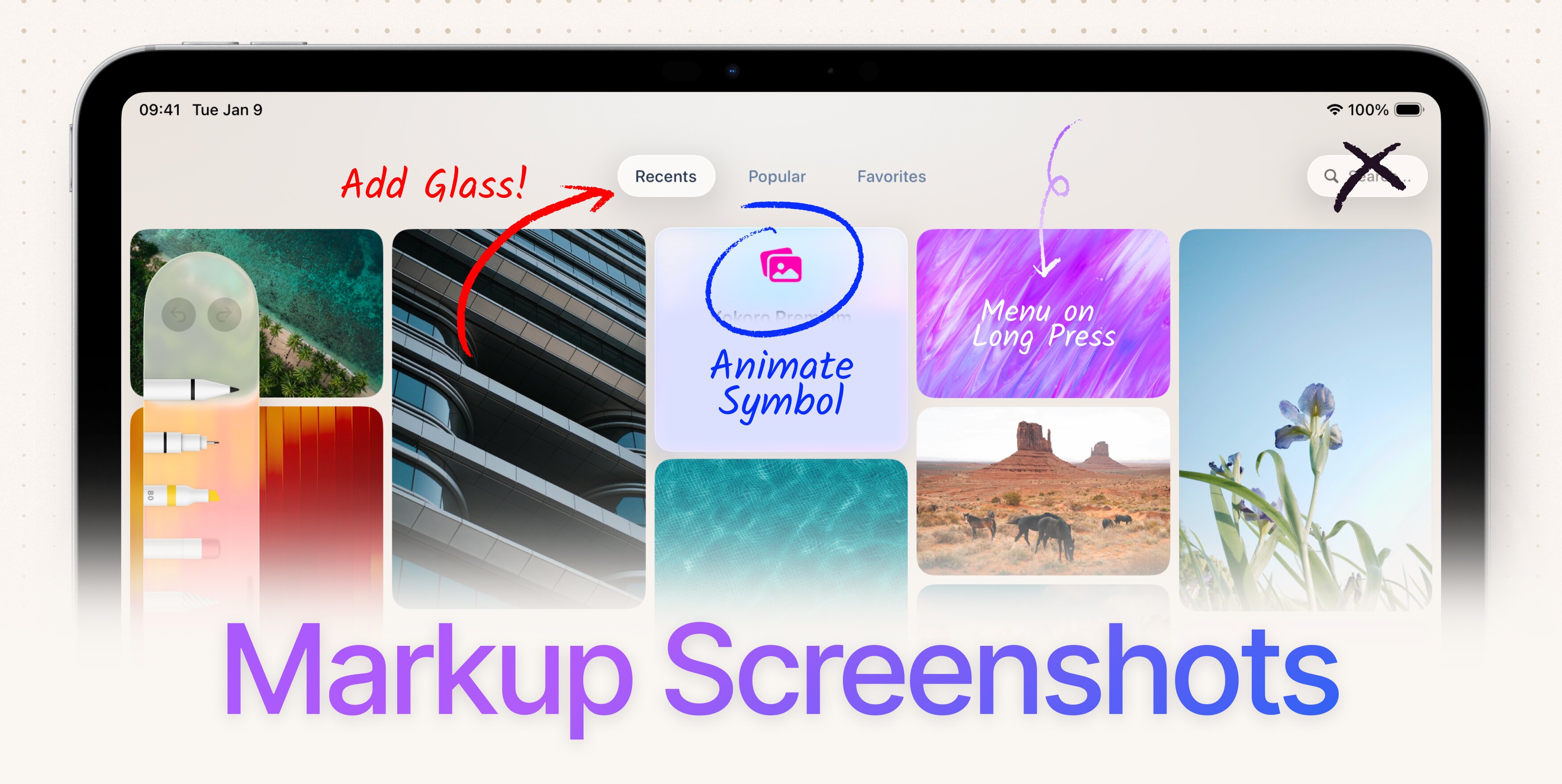
Together, selection and markup let you point directly at the parts of your interface you want to change. Spend less time describing what’s already on the screen, and more time building.
You can now type, click, draw, and speak to Bitrig. Use whichever interaction mode the situation calls for, and turn the idea in your head into a real app as quickly and faithfully as possible.
Topics
Simulator
Developer Workflow

