Guides

In brief
Most apps split the work between a client on the device and a server online. Learn when your app needs a backend and the simplest ways to add one.
Most mobile apps have two major sides: the client and the server.
The client is the app running on your iPhone, iPad, Mac, or another device. It displays the interface and responds when you tap buttons, enter text, or move between screens. The server is a computer system somewhere else that stores data, runs protected logic, or connects the app to services on the internet.
The basic flow is simple:
The client asks for something.
The server processes the request.
The server sends a response.
The client turns that response into the interface you see.
That back-and-forth powers everything from weather forecasts and sports scores to social feeds, synced notes, shared documents, and AI features.
Client vs. server: What does each side do?
What is the client in a mobile app?
The client is the part of the app that runs on the user’s device.
When most people picture an app, they’re picturing the client. It includes the screens, buttons, navigation, animations, and code that turns data into something useful. In a native iPhone app, the client is the Swift and SwiftUI code installed on the device.
Some clients can do their entire job without the internet. A calculator, flashlight, timer, or offline drawing app may work almost entirely on the device.
Other apps need information the device doesn’t already have. That’s where a server comes in.
What is a server in a mobile app?
A server is a computer that receives requests from clients and returns data or performs work for them.
Developers also use the word backend. A backend may include multiple servers, a database, authentication, file storage, and code that applies the app’s business rules.
A weather app may request a forecast, a social app may request the newest posts, and an AI app may send a prompt for processing.
The server sends data back, and the client decides how to present it.
How do the client and server communicate?
The client and server usually communicate through an API, which stands for application programming interface.
An API is an agreed-upon way for one piece of software to request data or actions from another. Think of it as a menu of requests the server understands.
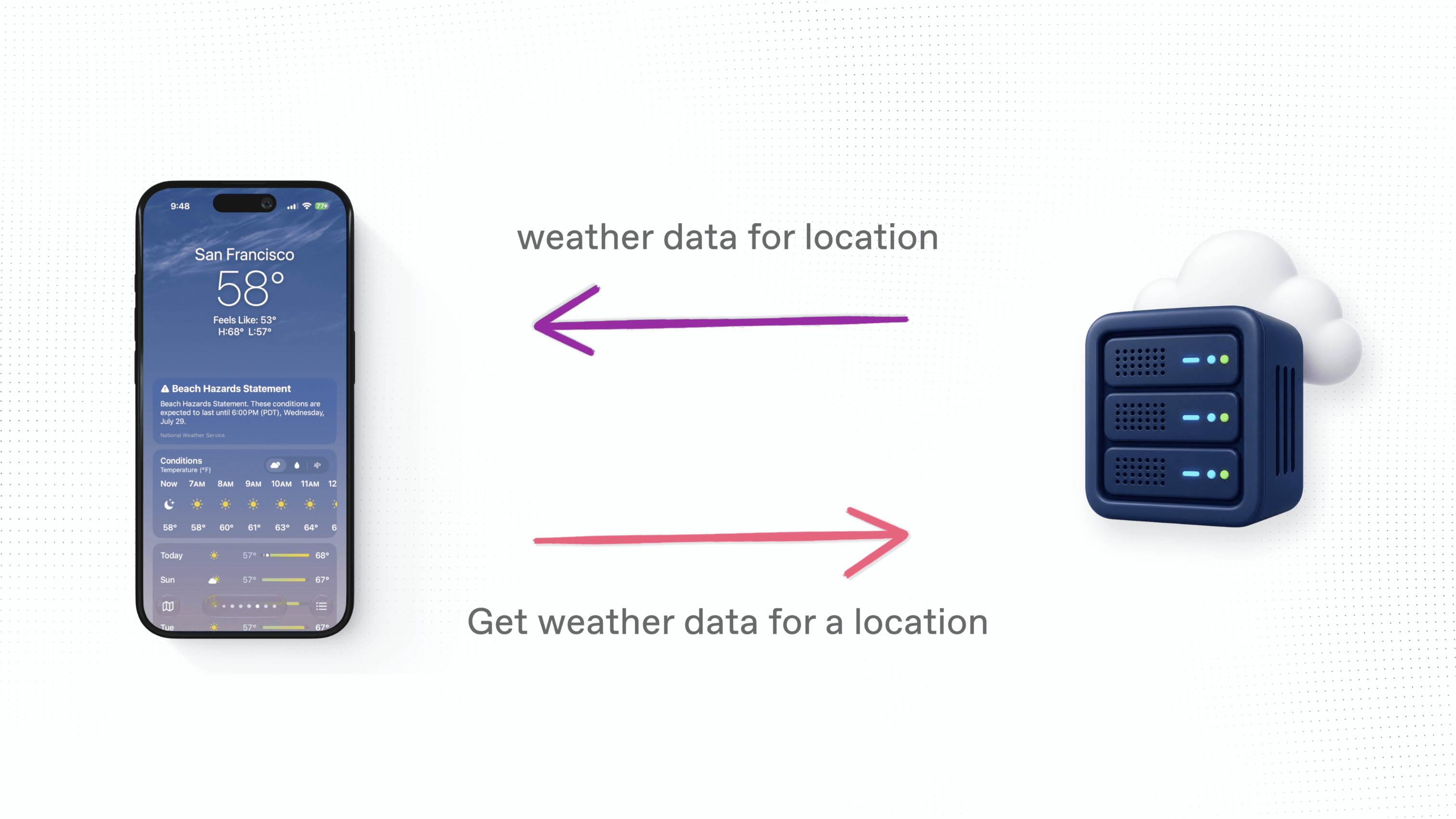
Imagine opening a weather app:
The client determines which location you want.
It sends a request through the internet.
The weather service finds the relevant forecast.
The service sends a response.
The client converts that response into temperatures, icons, charts, and readable text.
API responses are often sent as JSON, a structured text format that apps can decode. They can also include images, audio, video, or other data.
On Apple platforms, WeatherKit is one example of a service that provides weather data through a Swift API and a REST API.
Why do apps store data on a server?
Servers make several important app experiences possible.
Syncing data across devices
Suppose you create a to-do item on your iPhone and expect it to appear on your iPad and Mac. If that item exists only on the iPhone, your other devices won’t know about it.
When the data is stored in a cloud database, each client can retrieve the latest version and keep everything in sync.
Sharing data between users
Social networks, messaging apps, collaborative documents, multiplayer games, and leaderboards depend on shared data.
Each person’s client connects to a central backend. That’s how everyone can see the same posts, messages, scores, or document changes.
Preserving important user data
Data stored only inside an app’s local container will generally be removed when the app is deleted.
When account data is stored on a backend, the user can reinstall the app, sign in, and download it again. The exact behavior depends on the app’s storage design and cloud service.
Protecting private credentials
Some credentials should never be shipped inside the client.
For example, OpenAI advises developers not to place secret API keys directly inside mobile apps. Someone could extract the key and make requests at the developer’s expense.
In that situation, the app should route requests through a secure backend that keeps the secret out of the client.
Does every mobile app need a server?
No. You may not need a server when:
The app works completely offline
All data can remain on one device
Users don’t need accounts or cross-device sync
There are no shared features
The app doesn’t depend on changing internet data
You don’t need to protect server-side secrets
You probably need a server or cloud service when:
Users need to sign in
Data must sync across devices
Multiple users share or change the same data
The app needs weather, sports, AI, or another online service
User data should survive reinstalling the app
Remote events need to trigger push notifications
You need to protect API keys or enforce rules outside the app
Some apps combine both approaches. They save data locally for speed and offline use, then sync with a server when a connection is available.
CloudKit vs. Firebase vs. Supabase: backend options for beginners
You don’t always have to build and operate a server from scratch. There are three common approaches.
Approach | Best when | Examples |
|---|---|---|
Third-party API | The data or capability already exists | WeatherKit, sports APIs, OpenAI APIs |
Backend as a service | Your app needs accounts, a database, sync, or storage | CloudKit, Firebase, Supabase |
Custom backend | Your app needs specialized logic or maximum control | A backend you build and host yourself |
Option 1: Use an existing API
If another service already provides the data or capability, using its API is often the easiest path.
A weather app doesn’t need to collect weather data itself. An AI app can connect to an AI platform instead of training and hosting its own model.
These services may charge based on usage, a subscription tier, or both. Pricing varies widely, so check the current rates, quotas, attribution requirements, and rate limits before building around one.
Also check how the provider expects you to secure credentials. Some Apple frameworks can be called directly from an app after the proper capabilities are configured. Other services require your own backend to protect a secret key.
Option 2: Use a backend as a service
A backend as a service, often shortened to BaaS, provides common backend features without making you run most of the infrastructure yourself.
Depending on the service, that may include:
A database
User authentication
File storage
Data synchronization
Access controls
Server-side functions
A dashboard for managing the project
For apps focused on Apple platforms, CloudKit is an important option to consider. CloudKit is Apple’s service for storing app data in iCloud, syncing it across Apple devices and the web, and sharing data between users. Bitrig comes with CloudKit integration and can handle all of this for you, saving you time and headaches.
Learn more in our CloutKit guide.
Third-party options include Firebase, which provides managed app infrastructure through Google Cloud, and Supabase, which provides a Postgres database along with authentication, storage, realtime features, and server-side functions.
These services remove a lot of infrastructure work, but not every backend decision. You still need to design your data, configure permissions, handle errors, protect user privacy, and understand how pricing changes as the app grows.
Option 3: Build a custom backend
A custom backend gives you the most control, but also the most work. You become responsible for deployment, monitoring, scaling, backups, security updates, and reliability.
For a first app, this is usually unnecessary unless learning backend development is part of your goal or your app has requirements a managed service can’t handle.
How should a beginner choose a backend?
Start with the simplest option that safely supports the app you want to build. Ask these questions:
Can the feature work entirely on the device?
If yes, start without a backend.Does the data or capability already exist?
Look for a reputable API before trying to recreate the entire service.Is the data unique to your app?
If users create accounts, tasks, photos, or shared content, consider a backend as a service.Is the app focused on Apple platforms?
CloudKit may be a strong fit.Will you expand to Android or the web?
Firebase, Supabase, or another cross-platform backend may fit better.Do you need secret API keys?
Plan for a secure backend or server-side function.What happens without an internet connection?
Decide whether the app should show cached data, allow offline changes, or display an error.
The best backend isn’t the one with the longest feature list. It’s the one that meets your requirements without adding unnecessary complexity.
Common client-server mistakes
Don’t put secret keys in the app, assume every request will succeed, or build more infrastructure than your first version needs.
A good client should show loading states, explain errors, allow retries when appropriate, and avoid losing the user’s work.
Frequently asked questions
Is an API the same thing as a server?
No. The server is the system doing the work. The API is the interface clients use to communicate with it.
Is a database the same thing as a server?
Not exactly. A database stores and organizes data. Server-side code controls how clients can read or change it. Managed backend services often package both together.
Can an iPhone app connect directly to a database?
Some managed services provide secure client SDKs and access rules. A traditional database generally shouldn’t be exposed directly to the public internet.
The app should connect through a protected API or a service designed for client access.
What happens if the server goes down?
Features that depend on it may stop working until it recovers. Cached data, offline support, retries, and clear error messages can reduce the impact.
Is CloudKit only for iPhone apps?
No. Apple supports CloudKit across iOS, iPadOS, macOS, tvOS, watchOS, visionOS, and the web. It’s most attractive when your product is centered on Apple platforms.
Will a backend automatically keep my data in sync?
No. A backend gives you the tools to synchronize data, but you still need to decide how records are identified, who can access them, how conflicting changes are handled, and what happens when devices make changes while offline.
The bottom line
Understanding client vs. server architecture comes down to separating their jobs.
The client is the app on the user’s device. It displays the interface, accepts input, and turns data into an experience. The server or backend stores shared data, performs protected work, and sends information to clients over the internet.
Not every app needs a server. Start without one when the app can work locally. Use an existing API when someone already provides the data. Use a backend as a service when your app needs accounts, synchronization, storage, or shared data. Build a custom backend only when your requirements justify the extra work.
Try Bitrig
When you’re ready to turn an idea into a native Apple app, Bitrig helps you build real Swift and SwiftUI apps with AI for Apple platforms. With CloudKit integration, Bitrig can get your backend up and running in no time.
Topics
Swift
Backends