Guides
In brief
Learn what CloudKit is, how its private, shared, and public databases work, what it costs, and when it makes sense for your first Apple app as a beginner.
CloudKit is Apple’s backend as a service for app developers. It lets your app store structured data in iCloud, sync that data across a person’s devices, and share data between users without requiring you to build and operate a traditional server.
Imagine you’re building a to-do list app. Someone creates a task on their iPhone, checks it off on their iPad, and later opens the app on their Mac. CloudKit can keep that data synchronized across every device signed into the same iCloud account.
CloudKit uses the person’s existing Apple Account for access to private data. Your users don’t need to create another account with an email address and password just to use your app.
CloudKit is a compelling option when you’re building a native app for Apple platforms and need cloud storage, syncing, or collaboration.
What problem does CloudKit solve?
Most apps need somewhere to store their data.
You can save data directly on the device, but that data may disappear if the app is deleted or the device is lost.
The traditional solution is to build a backend. That usually involves:
Running a server
Creating a database
Building an API
Managing user accounts
Handling authentication
Monitoring security and performance
Paying for hosting as the app grows
CloudKit handles many of those responsibilities for you. It can store app and user data, synchronize it across devices, share it with other users, and give developers tools for monitoring and managing the database.
You still have to design your app’s data model and write the code that uses it, but you don’t need to build an entire backend from scratch.
Bitrig has support for CloudKit built right in so it can handle all of this for you, saving you a lot of time.
Why would an app developer use CloudKit?
CloudKit has several benefits that make it especially attractive to independent developers and small teams.
It’s built into Apple’s ecosystem
CloudKit is a first-party Apple framework. You don’t need to add a third-party database SDK to your project just to start using it.
It integrates with Swift, Xcode, SwiftData, Core Data, and Apple’s signing and capability system. This makes it a natural fit for native apps running on Apple platforms.
Users can access private data through iCloud
For private and shared data, CloudKit uses the Apple Account that’s already signed into iCloud on the device.
Think about the experience of using an app such as Notes. You don’t create a separate Notes username and password. You sign into your Apple Account once, and your information becomes available across your devices.
CloudKit lets your app provide a similar experience.
Your app still needs to handle situations where someone isn’t signed into iCloud or CloudKit is temporarily unavailable. However, you don’t have to create and secure a completely separate authentication system for basic private-data syncing.
You don’t operate the server
Apple manages the underlying cloud infrastructure.
You don’t have to maintain database servers, install security updates, or wake up because your hosting provider ran out of memory. You can focus more of your time on the app itself.
That doesn’t mean CloudKit removes every backend concern. You still need to design your schema, test syncing, handle errors, plan migrations, and monitor the production environment. It simply removes a large amount of infrastructure work.
It supports privacy-focused data storage
CloudKit provides account-based protection for private and shared data. It also supports encrypted fields for sensitive values stored in private records.
Public database records are different. They’re intended for information that may be accessible to everyone using the app, so you should never treat the public database as private storage.
Apple explains the available protections in its CloudKit encryption documentation.
What are the three CloudKit databases?
A CloudKit container separates data into three database types: private, shared, and public. The database you choose depends on who should own the data and who should be able to see it.
CloudKit database | Who the data belongs to | Who can access it | Common examples |
|---|---|---|---|
Private | One user | That user and your app | Personal tasks, journal entries, photos |
Shared | Originally one user, then shared | The owner and invited participants | Shared lists, collaborative notes, shared photo album |
Public | The app or its community | Potentially every app user, depending on permissions | News, schedules, public posts, shared catalogs |
Private database
Use the private database when data belongs to one person. Examples include:
Tasks in a personal to-do app
Journal entries
Saved favorites
Personal documents
A person’s custom collections
Every user gets their own private database inside your CloudKit container. One user can’t simply browse another user’s private records.
The main benefit is syncing. Someone can create data on an iPhone and access the same data from an iPad or Mac signed into the same iCloud account.
Private data is stored within the user’s iCloud account rather than consuming your app’s public storage allocation.
Shared database
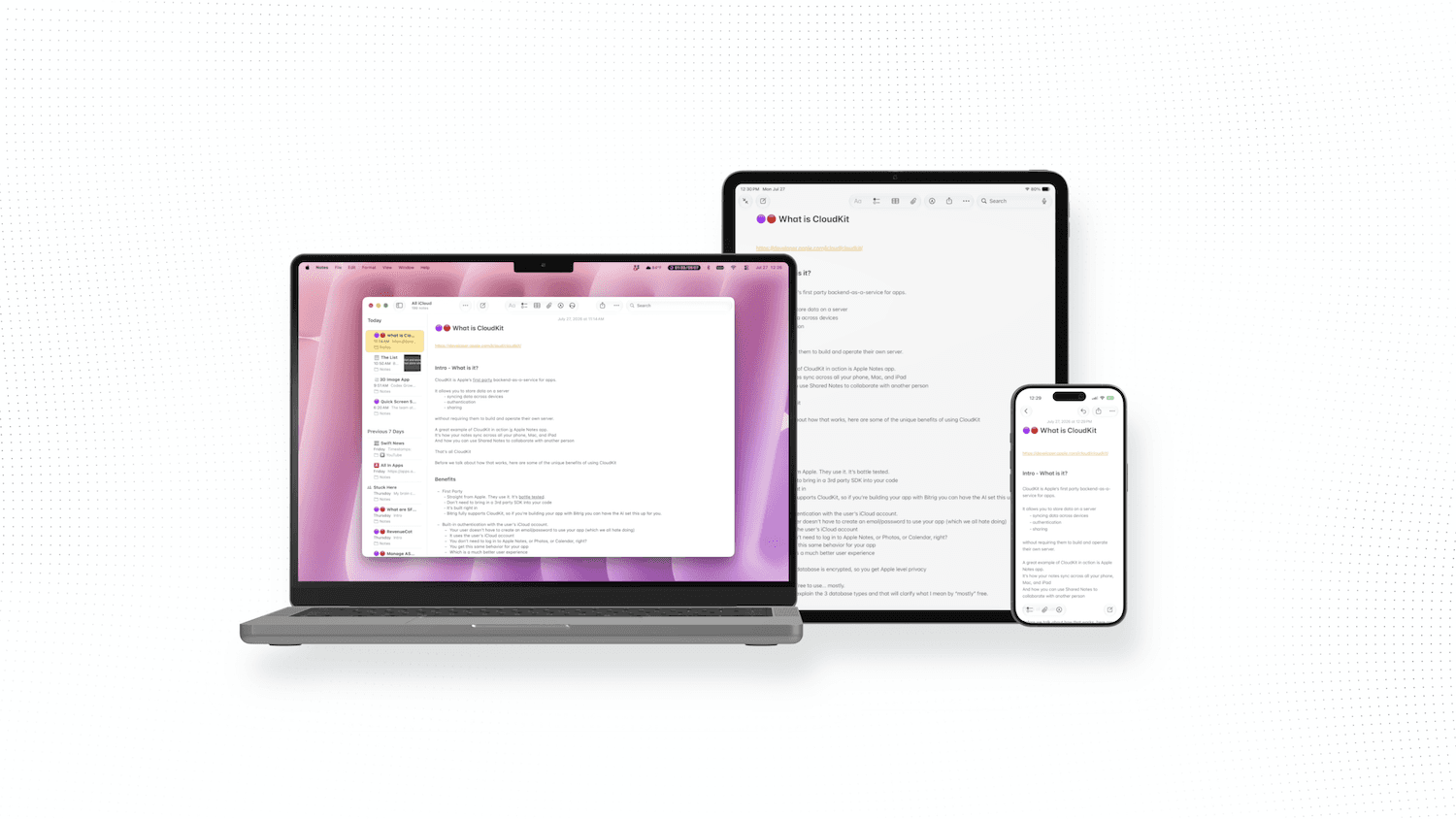
Use the shared database when one person wants to share some of their private data with other people.
Imagine a grocery-list app. A user creates a private list and then invites their partner to collaborate. The owner still controls the original data, but invited participants can access the shared records according to the permissions your app provides.
Other examples include:
A shared travel itinerary
A shared photo album
Household chores
Notes shared between coworkers
CloudKit provides APIs for creating shares, inviting participants, setting permissions, and removing access. Apple provides a CloudKit sharing sample that demonstrates the underlying concepts.
As of August 2026, SwiftData does not support CloudKit sharing. You will need to use Core Data if you intend to use the shared database in your app.
Public database
Use the public database for information that should be available across your app’s user base.
For example, I use CloudKit in a Formula 1 app that displays the same standings and race schedule to every user. That information belongs to the app rather than one specific person, so the public database is the logical place to store it.
Other public database examples include:
News articles
Public events
Product catalogs
Community posts
You can control which users are allowed to create, read, or modify different public record types. However, the public database shouldn’t contain information that needs to remain private.
How does CloudKit organize your app’s data?
CloudKit uses a few terms that will help you understand how everything fits together.
Containers
A CloudKit container is the top-level space that holds your app’s databases and configuration.
Containers keep one app’s CloudKit data separate from another app’s data. Some developers also use a shared container when multiple related apps need access to the same information.
Record types
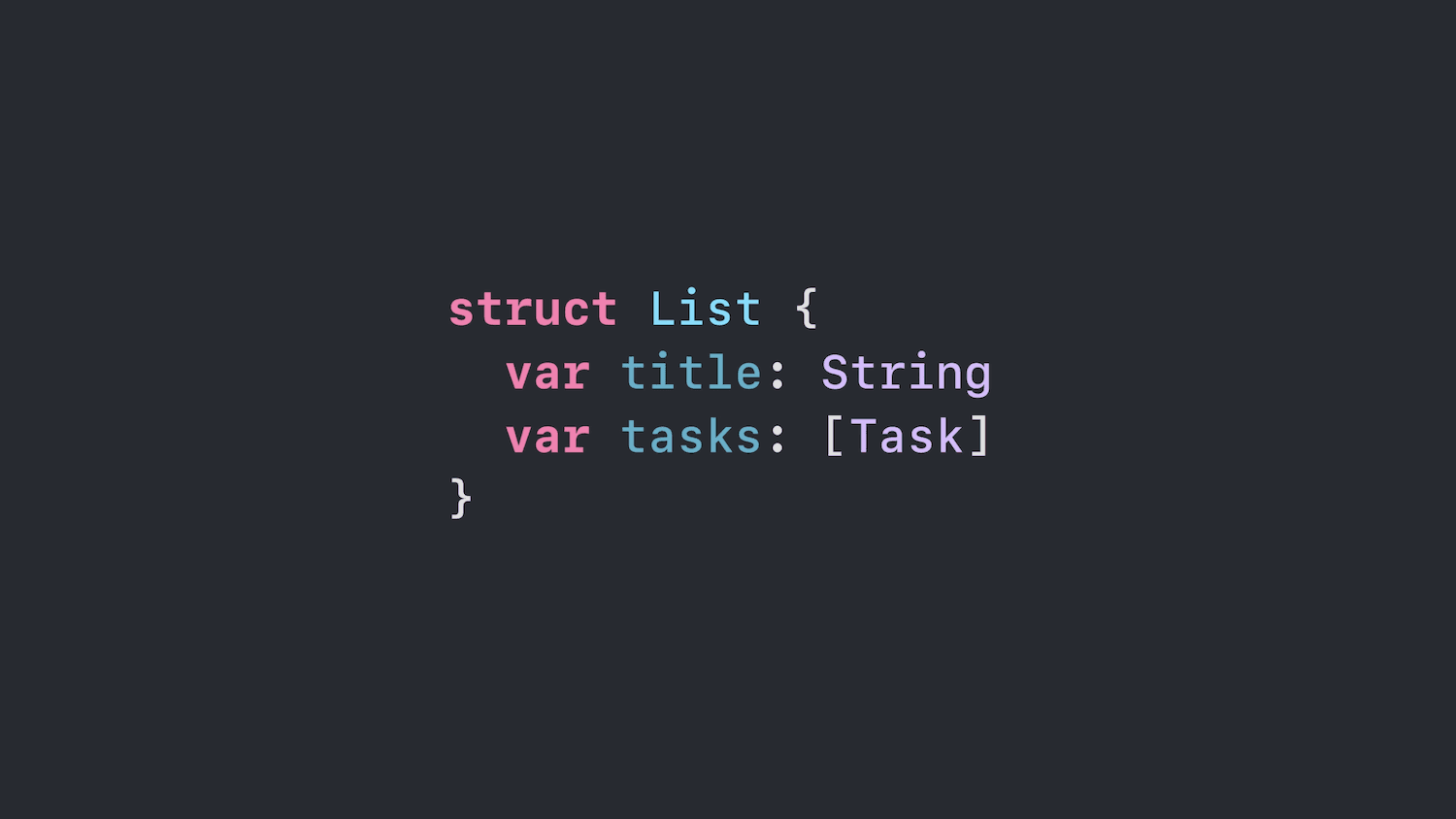
A record type describes a category of data. In a to-do app, you might create record types named:
TaskListTag
You can think of a record type as being similar to a model type in Swift or a table in a traditional database.
Records
A record is one individual piece of data. One task called “Buy groceries” would be a record of the Task record type. Another task called “Book hotel” would be a separate record.
Fields
Fields contain the values stored inside a record. A task record might contain:
A title
A completion status
A due date
A priority
A reference to its list
This is similar to the properties you would define on a Swift model.
Relationships and schema
Records can be related to other records. A List record, for example, might be connected to several Task records.
The complete definition of your record types, fields, indexes, and relationships is called your schema.
You can inspect and manage this schema through the CloudKit Console. Apple’s web-based console also provides access to test data, server logs, telemetry, alerts, and production database activity.
How do SwiftData and Core Data work with CloudKit?
You can communicate with CloudKit directly using the CloudKit framework, but that isn’t your only option.
Apple’s local persistence frameworks can also manage much of the synchronization process.
SwiftData with CloudKit
SwiftData (the successor to Core Data) can automatically synchronize compatible model data through CloudKit when your app has the correct capabilities and configuration.
You define your SwiftData models, save them locally, and configure the model container to use CloudKit. SwiftData then manages the persisted store and synchronization.
Apple provides a guide to syncing SwiftData model data across a person’s devices.
Automatic syncing is convenient, but it isn’t magic. Your schema still needs to be compatible with CloudKit, and you need to test migrations, relationships, deletion behavior, conflicts, and first-time synchronization.
As of August 2026, SwiftData does not support CloudKit sharing. You will need to use Core Data if you intend to use the shared database in your app.
Core Data with CloudKit
Core Data can synchronize a persistent store through NSPersistentCloudKitContainer.
This gives established Core Data apps a way to maintain a local copy of their data while mirroring changes through CloudKit.
Apple’s Core Data and CloudKit setup guide covers the required capabilities and persistent-container configuration.
Direct CloudKit access
Using the CloudKit framework directly gives you more control over records, zones, queries, subscriptions, and synchronization behavior.
That control also means more code and more responsibility. For many beginner apps, starting with SwiftData or Core Data synchronization may be easier than building a complete CloudKit layer manually.
Is CloudKit free?
CloudKit is mostly free, but there are a few important details.
As of August 2026, CloudKit is included with the paid Apple Developer Program, which costs $99 per year in the United States. You can learn more in our guide to the free and paid Apple developer accounts.
Apple currently includes up to 1 petabyte of free public CloudKit storage for each app with the membership. One petabyte is an enormous amount of storage for most independent apps.
Private data lives in each user’s iCloud account, so it scales differently from the data in your app’s public database.
You shouldn’t interpret this as unlimited free infrastructure for every possible workload. Storage allowances, request limits, transfer limits, and Apple’s program terms can change. Check the current CloudKit information before making major architectural or financial decisions.
What are CloudKit’s limitations?
CloudKit is powerful, but it isn’t the right backend for every app.
It’s designed primarily for the Apple ecosystem
CloudKit’s strongest integrations are with native Apple platforms.
Apple also provides CloudKit JS for web interfaces and HTTP-based CloudKit web services. Technically, CloudKit isn’t restricted exclusively to native Apple apps.
However, there’s no equivalent first-party CloudKit SDK designed specifically for building a full Android app. If your product needs equally important iOS, Android, and web clients from the beginning, a platform-neutral backend may be easier to manage.
It depends on iCloud
Private and shared CloudKit data depends on the user having an available iCloud account. Your app needs to gracefully handle someone who is signed out, has restricted iCloud access, or temporarily can’t reach the service.
You have less infrastructure control
Not running a server is one of CloudKit’s biggest benefits, but it can also be a limitation.
You don’t control Apple’s infrastructure or every part of the synchronization schedule. Complex server-side processing, specialized search systems, custom authentication flows, and deeply platform-independent APIs may require a different backend or an additional server component.
Schema changes require planning
Changing a local model during early development is easy. Changing a production cloud schema after real users have stored data requires much more care.
Test your data model, migrations, and production deployment process before releasing the app.
Should you use CloudKit for your app?
CloudKit is worth exploring when most of the following are true:
You’re building primarily for Apple platforms.
Your app needs to sync data across a user’s devices.
You want users to share selected data with other people.
You don’t want to operate a traditional backend.
An iCloud-based user experience fits your app.
Your data can be represented using records, fields, and relationships.
You’re comfortable depending on Apple’s ecosystem.
Consider another solution when:
Android support is a major requirement.
You need a platform-neutral authentication system.
Your backend requires extensive custom server-side processing.
You need complete control over infrastructure and synchronization.
Your app relies on specialized database or search capabilities that CloudKit doesn’t provide.
CloudKit doesn’t have to handle every part of your app. Some apps use it for private synchronization while relying on another service for public APIs, payments, analytics, or custom processing.
How do you get started with CloudKit?
At a high level, the process looks like this:
Decide whether your data should be private, shared, or public.
Join the paid Apple Developer Program if you haven’t already.
Add the iCloud and CloudKit capabilities to your Xcode project.
Create or select a CloudKit container.
Define your model using SwiftData, Core Data, or CloudKit records.
Test with multiple devices and Apple Accounts.
Inspect the development data and schema in CloudKit Console.
Deploy the schema to production before releasing the app.
Monitor logs and telemetry after launch.
This article is only a high-level introduction. Before shipping a production app, spend time learning about account availability, schema deployment, record zones, error handling, conflict resolution, and data migration.
Frequently asked questions
Is CloudKit a database?
CloudKit is more than a traditional database. It’s a backend service that provides cloud databases, iCloud-based account access, syncing, sharing, subscriptions, monitoring, and development tools.
Your data is stored as records containing fields and relationships.
Do CloudKit users need to create an account?
Users generally don’t need to create a separate email-and-password account for private CloudKit data. CloudKit uses the Apple Account signed into iCloud on their device.
Your app still needs to check whether the account is available and explain what happens when iCloud access is disabled.
Does CloudKit work offline?
CloudKit itself is a cloud service, so network access is required to send and receive server changes.
However, SwiftData and Core Data can maintain local persistent data and synchronize it through CloudKit when a connection becomes available. Exact offline behavior depends on how your app’s persistence and syncing are implemented.
Can CloudKit sync between an iPhone, iPad, and Mac?
Yes. CloudKit is designed to synchronize data across Apple devices that have access to the same user or shared data.
Apple currently supports CloudKit across iOS, iPadOS, macOS, watchOS, tvOS, visionOS, and the web.
Can CloudKit share data between users?
Yes. One user can share records with other iCloud users and give them permission to view or edit the shared data. Shared lists, collaborative notes, trip planning, and family collections are common examples.
As of August 2026, SwiftData does not support CloudKit sharing. You will need to use Core Data if you intend to use the shared database in your app.
Is CloudKit a replacement for Firebase?
It can replace Firebase for some Apple-first apps, particularly when the main requirements are private iCloud storage, device syncing, and user-to-user sharing.
Firebase and similar services may be a better fit when Android support, custom authentication, extensive server logic, or a platform-neutral backend are important.
Does CloudKit require the Apple Developer Program?
CloudKit is included as an advanced capability with paid Apple Developer Program membership. As of August 2026, the membership costs $99 per year in the United States.
The bottom line
CloudKit is Apple’s backend service for storing app data in iCloud, syncing it across devices, and sharing it between users.
It’s a strong choice when you’re building a native Apple app, want an iCloud-based experience, and don’t want to build and maintain your own server. It’s less compelling when Android support or complete backend control is a major requirement.
The easiest next step is to identify what data your app needs to store and decide whether each piece belongs in the private, shared, or public database.

Try Bitrig
Bitrig helps new developers build native Swift apps with AI. When your app needs cloud storage or syncing, you can ask Bitrig to help configure CloudKit and connect it to your app’s data model. Learn more about CloudKit integration and Bitrig here.
Topics
CloudKit
Backends

